Enterprise Systems
AInventory: from shelf signals to store action
A computer-vision platform for retail, connecting shelf availability and planogram compliance to analytics, employee tasks and camera operations.
Problem and context
AInventory monitors shelf availability and checks product placement against planograms. Detecting an issue is only the starting point: a manager needs to prioritise it, an employee needs to resolve it, and a partner needs to keep the cameras working. In 2024, we designed connected workflows for these roles while the product was being developed for its first customers.
My role
Working with Kirill, I helped design store management, analytics and employee workflows. My work also covered camera setup and monitoring for a product intended to be configured and operated by partners themselves. I prepared a demonstration scenario and an animation to present the product.
Show where attention is needed
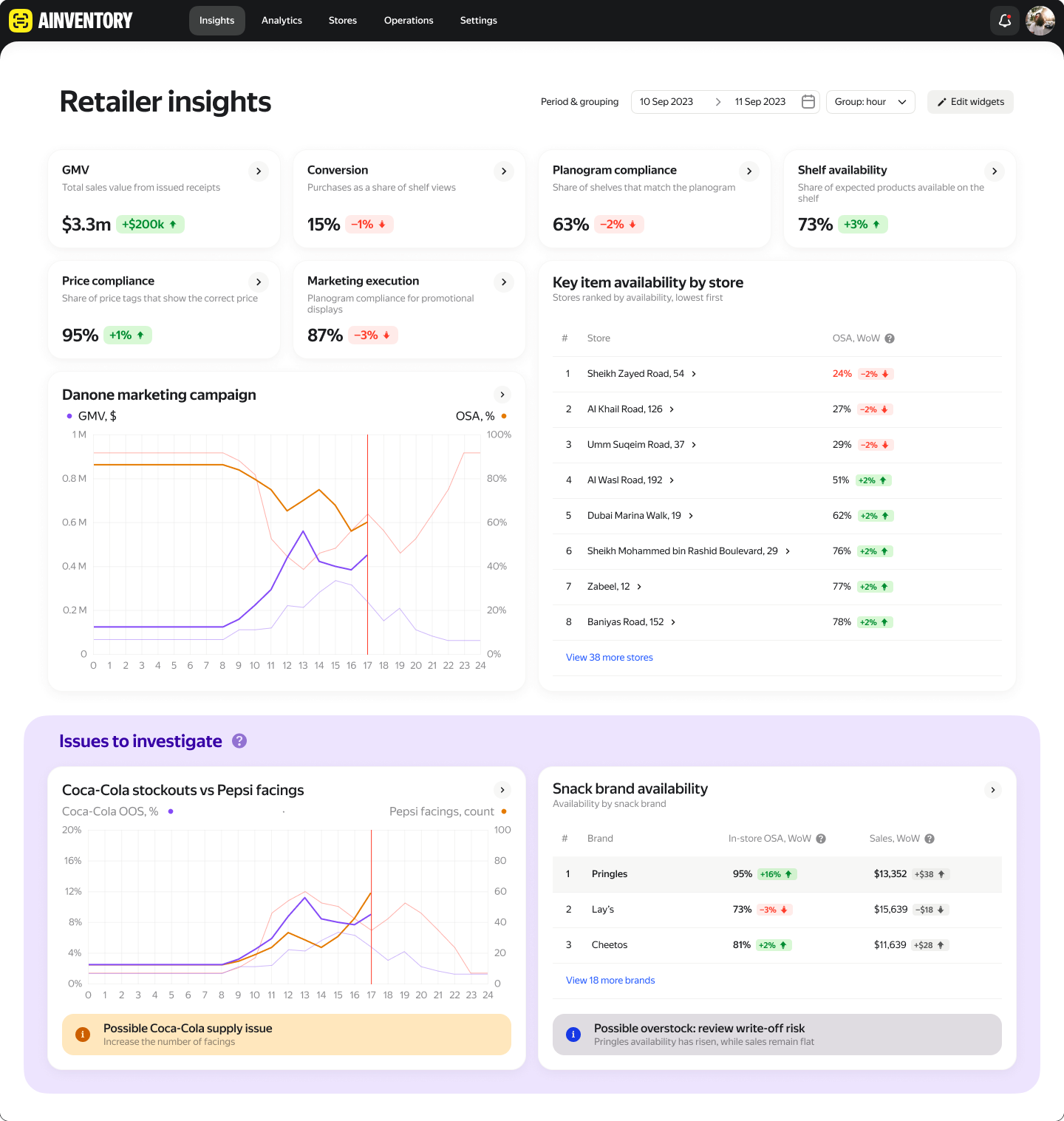
The overview brings sales, availability and planogram compliance together. Store rankings help managers decide where to investigate first, while a dedicated insights area surfaces unusual patterns. The summary gives analysis a starting point, connecting individual measures to the stores that need attention.
Explain the metric and support comparison
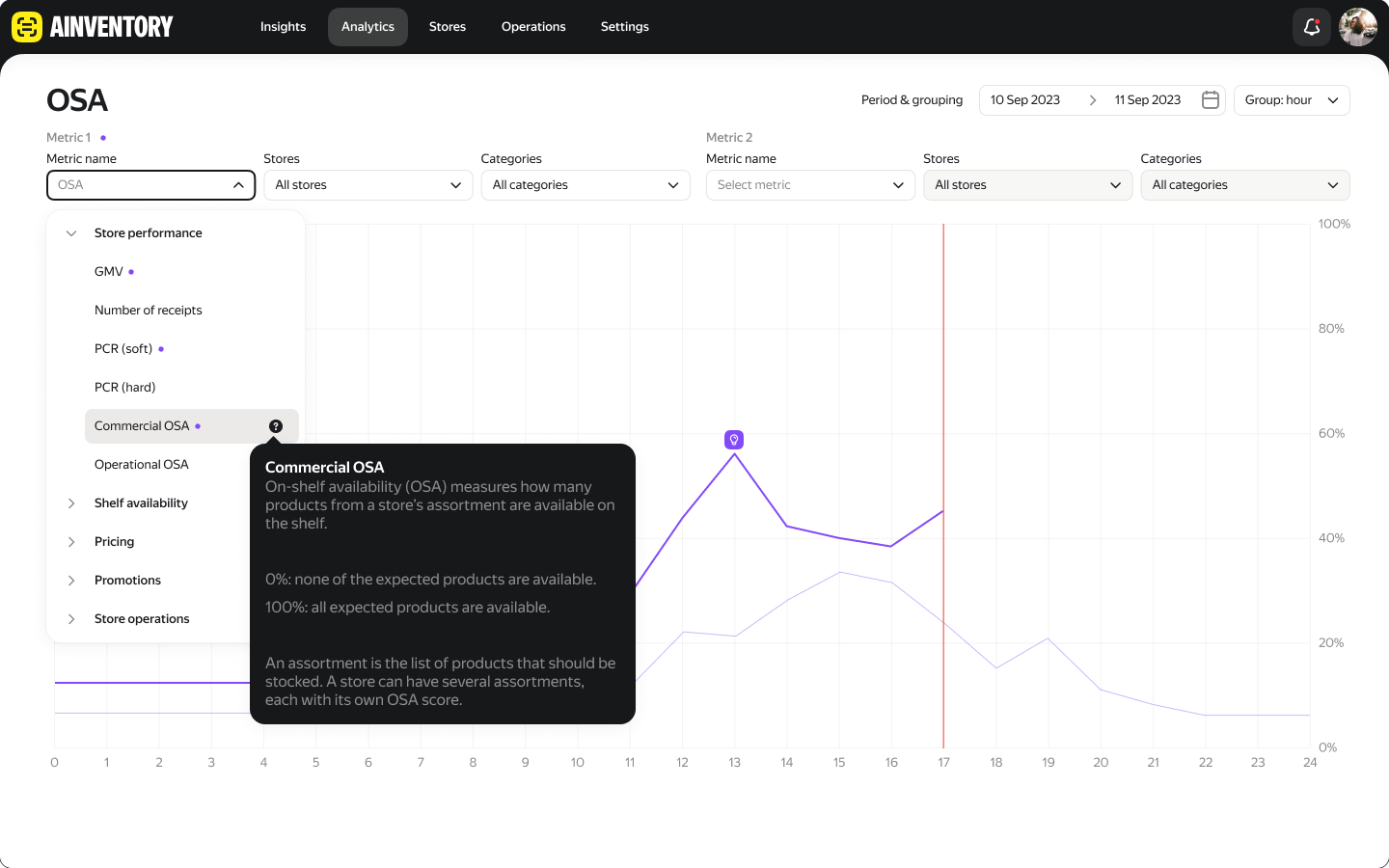
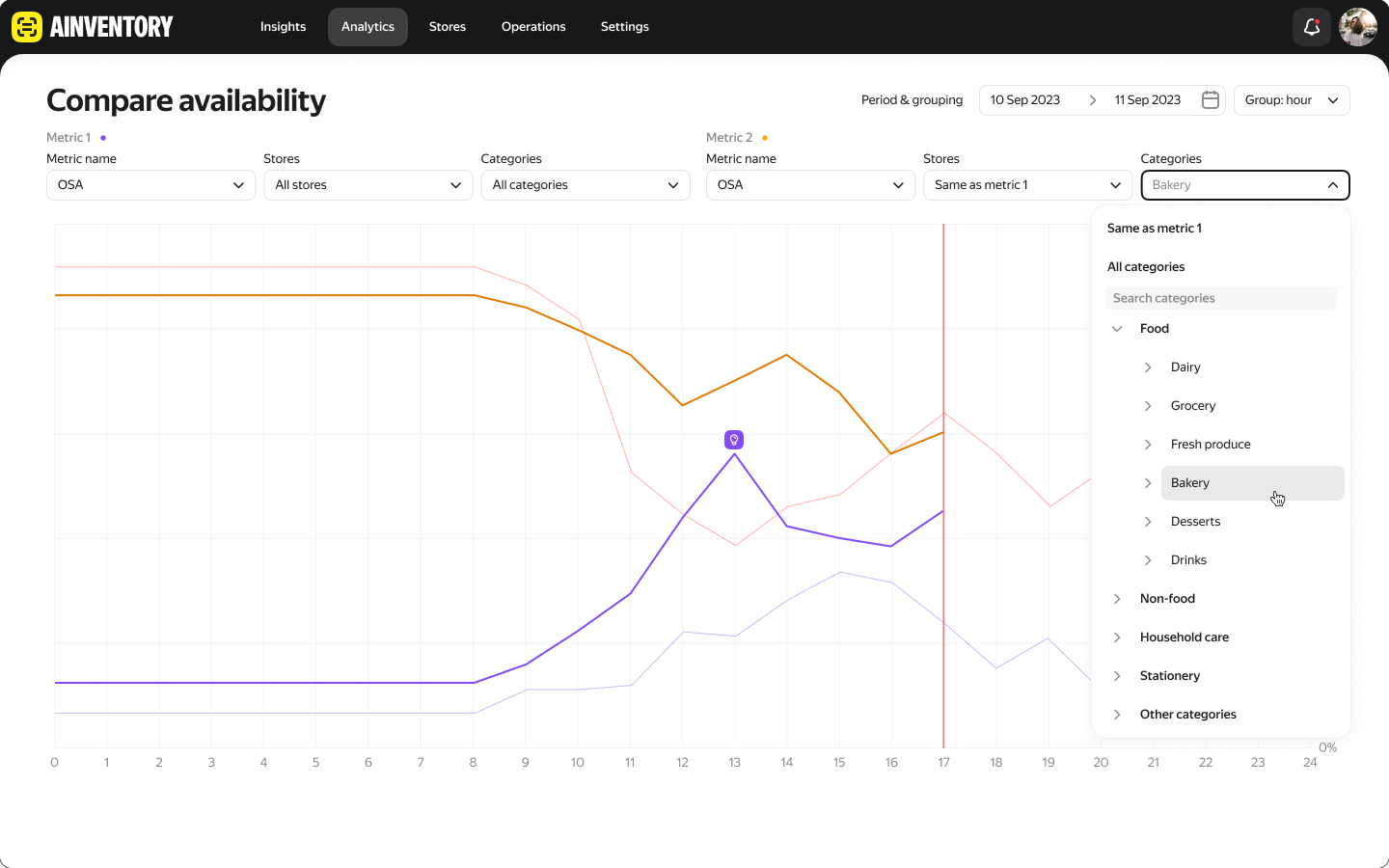
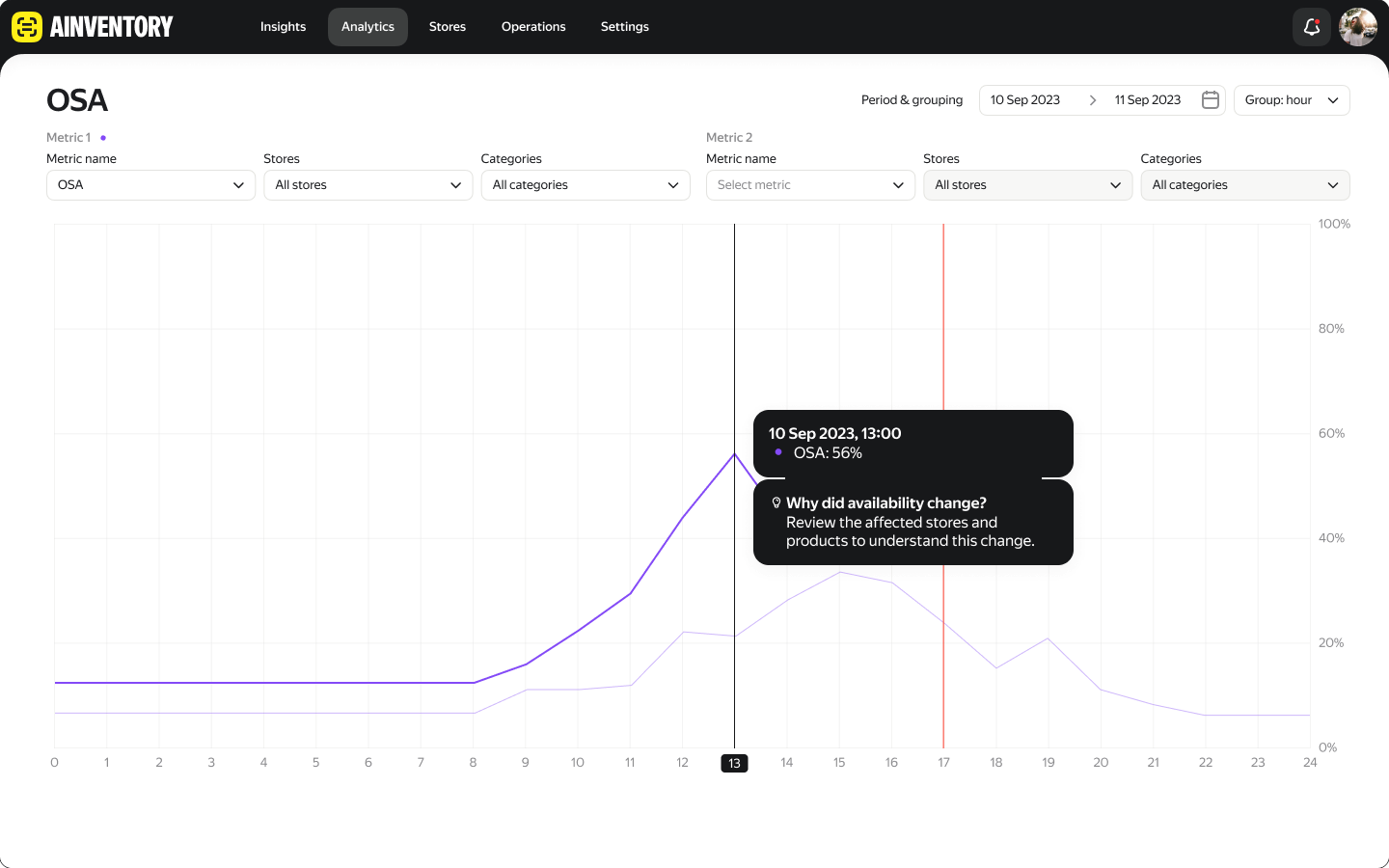
The analytics view lets people select a metric, narrow the store and category scope, and compare two series. Definitions sit beside the controls. Contextual insights connect a change in the chart to further investigation, while reusing the first series’ filters reduces repeated setup.
Locate the shelf behind the signal
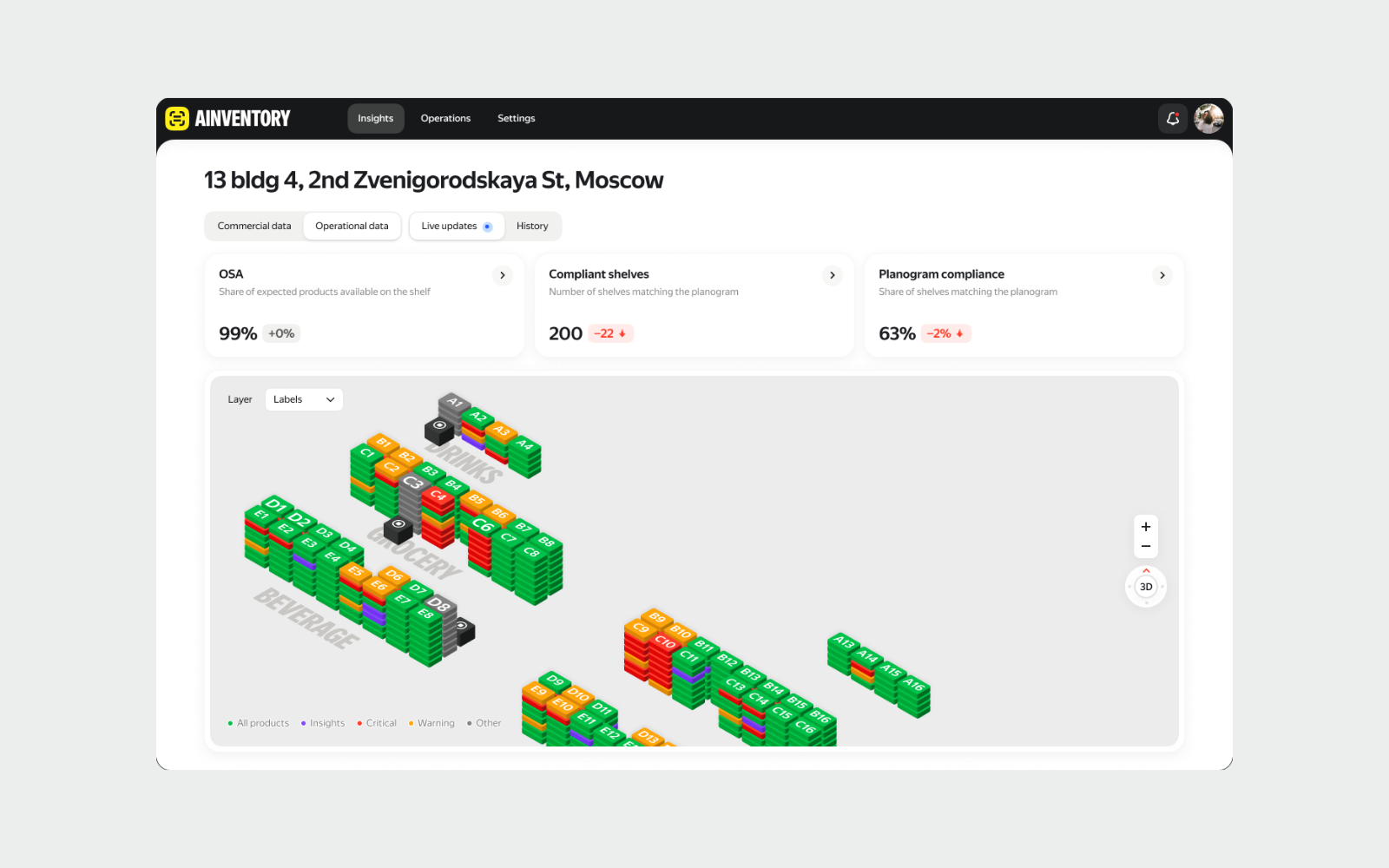
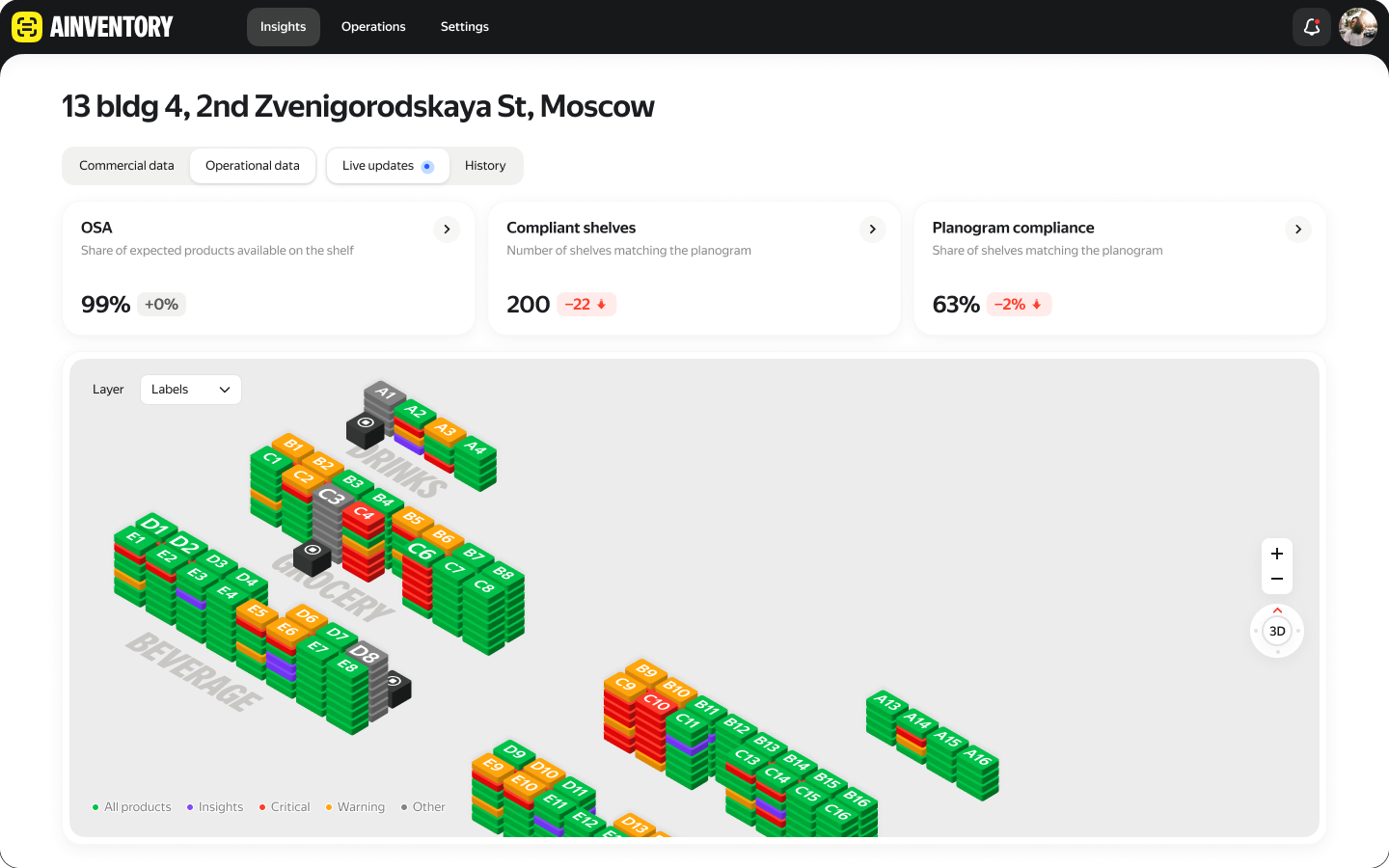
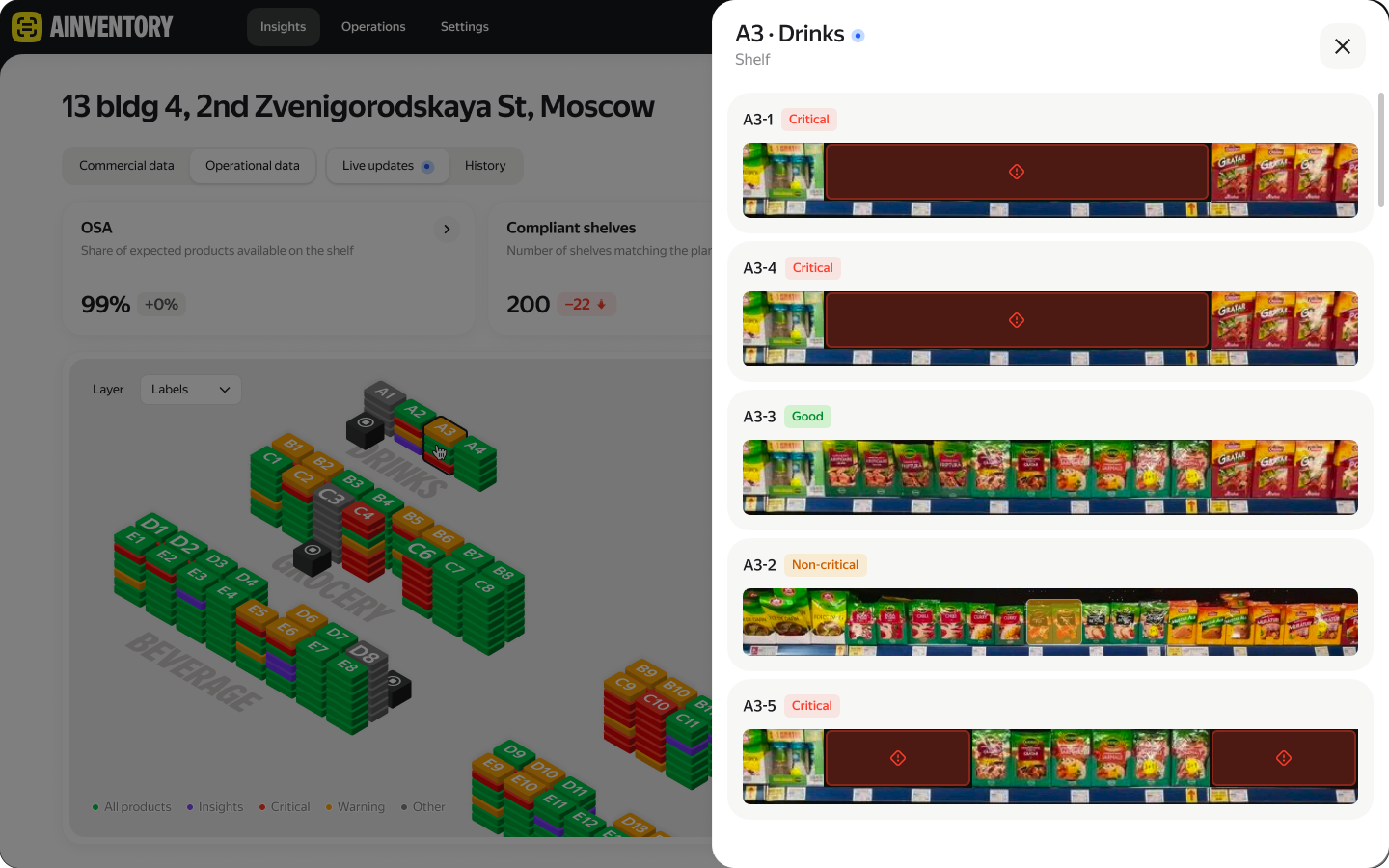
The floor plan keeps issues tied to a physical location. A shelf detail panel combines product availability, quantities and camera evidence. People can inspect the issue while retaining the store context and seeing where it sits relative to surrounding shelves.
Turn a signal into a concrete task
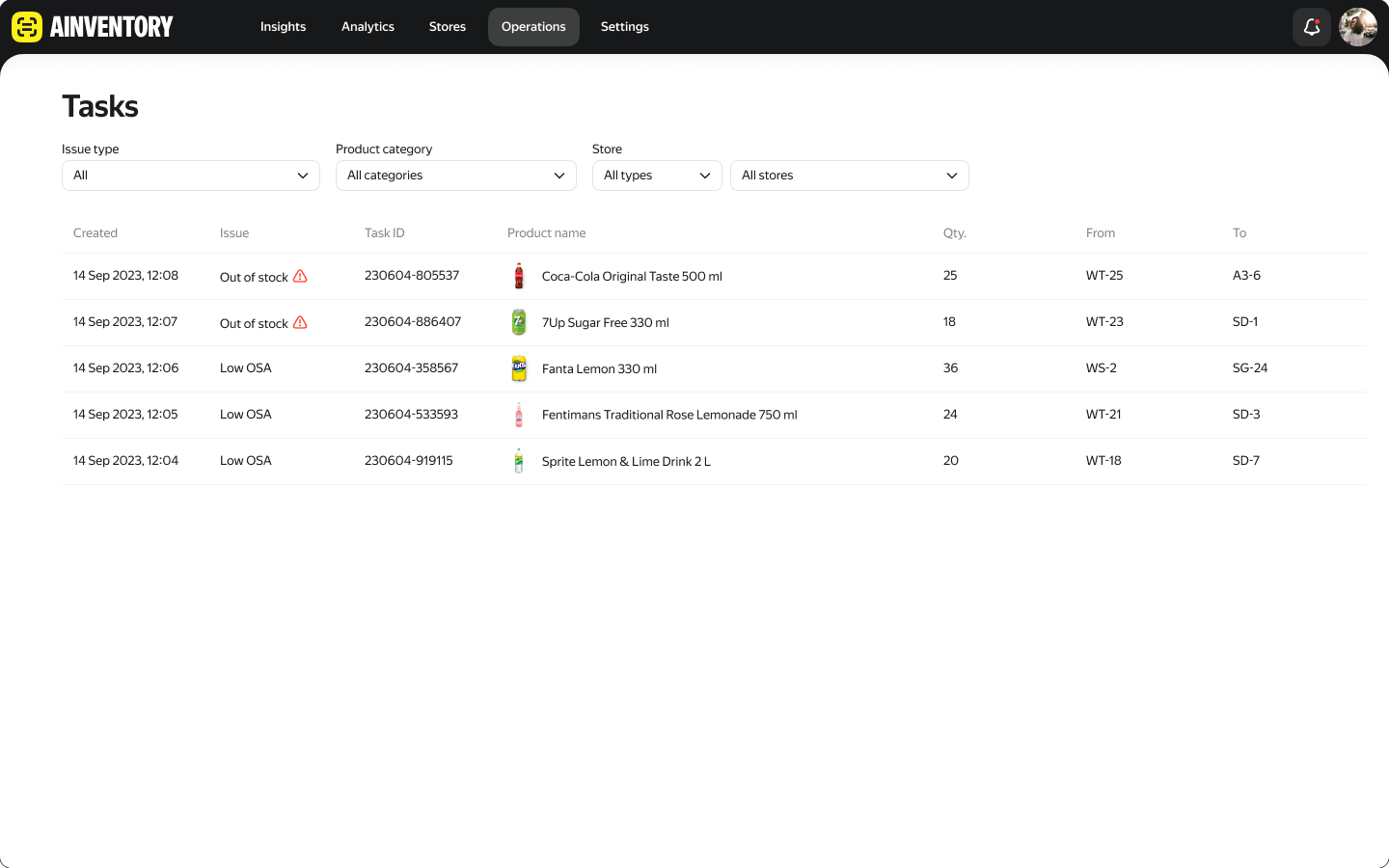
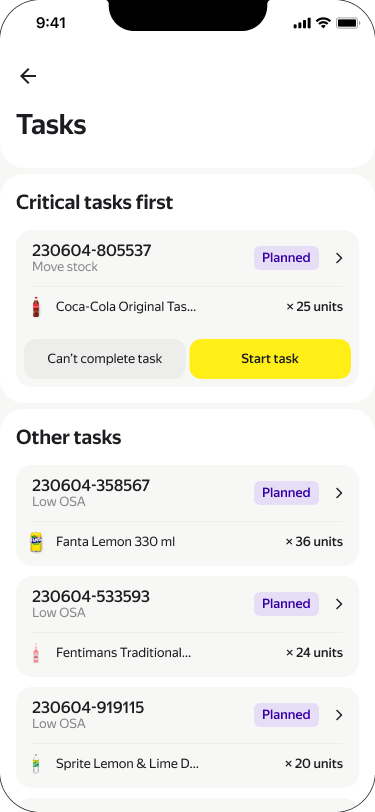
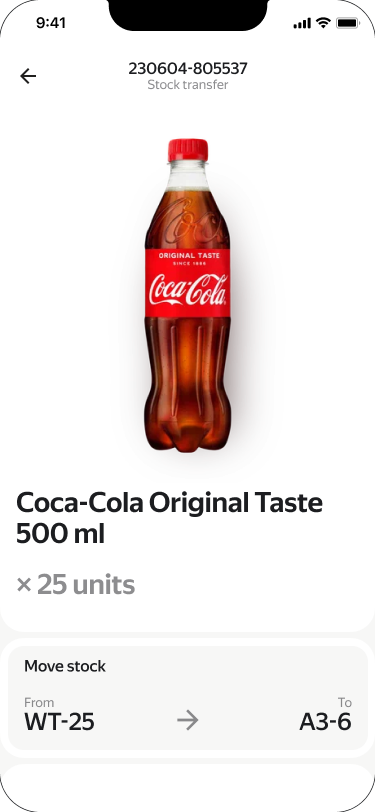
A detected shelf issue becomes a task with a product, quantity and location. Managers review the queue on desktop; employees see critical work and instructions on mobile. Both views preserve source and destination locations. A “Can’t complete task” route acknowledges cases where the task cannot be completed as instructed.
Make the camera system manageable
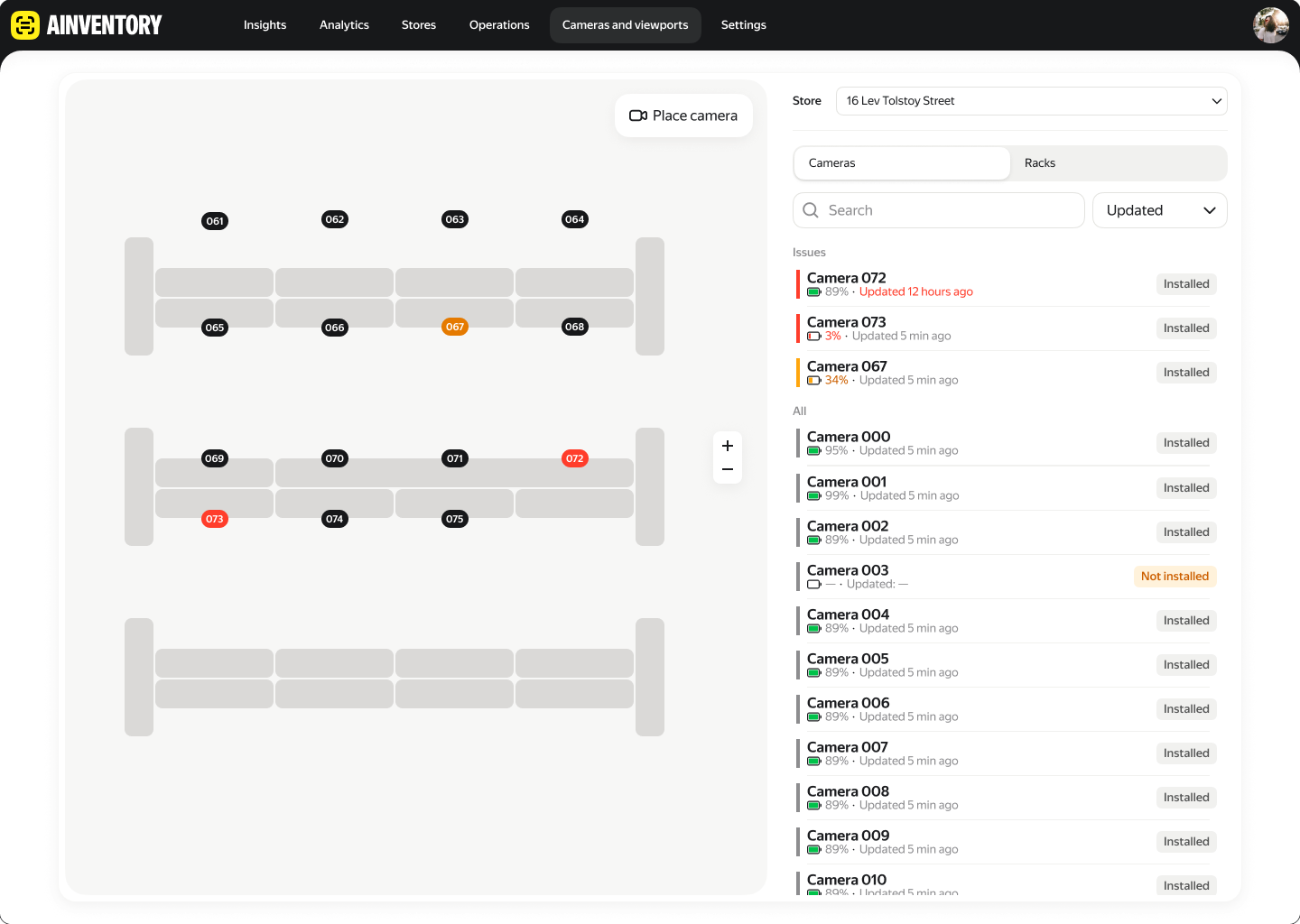
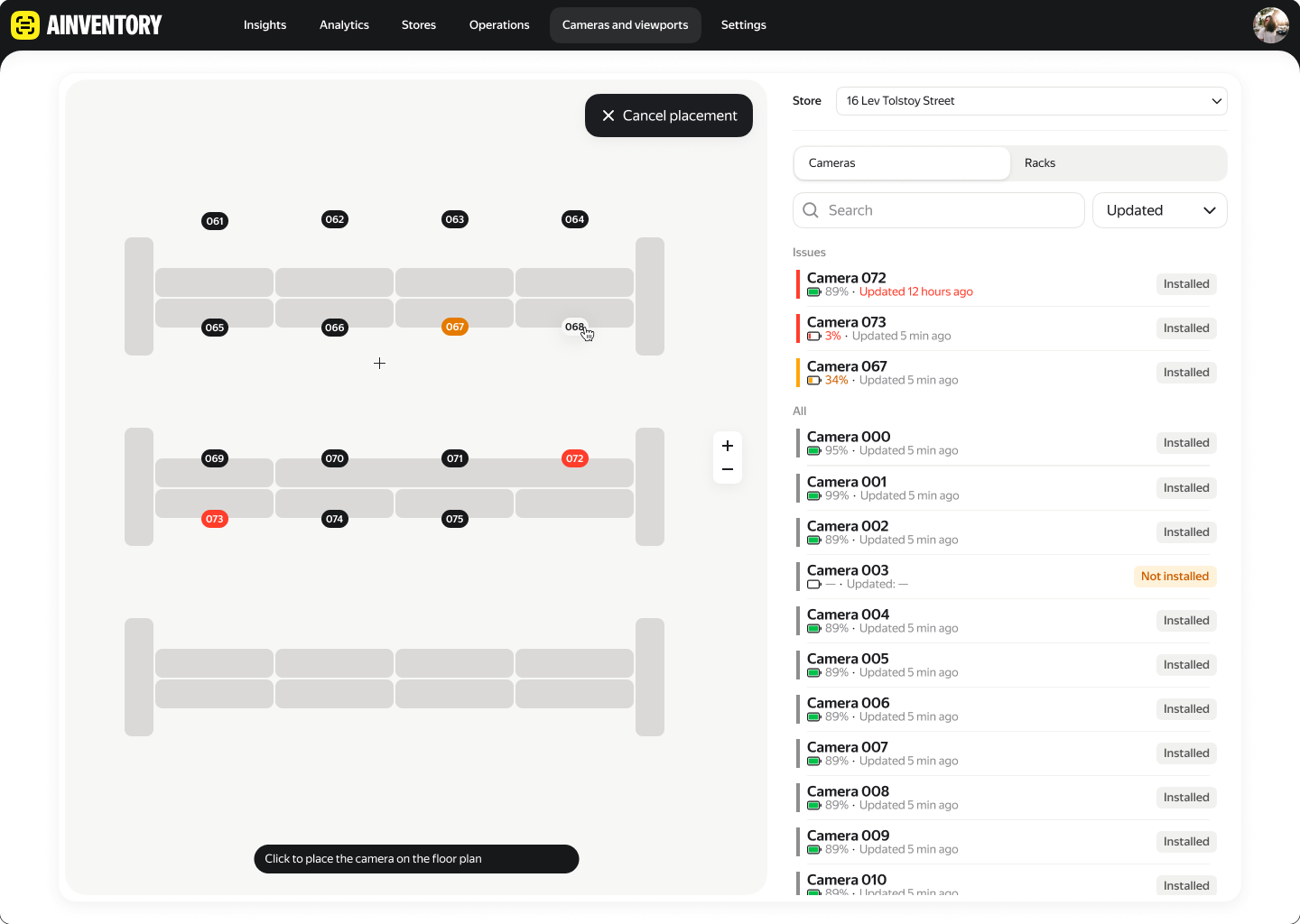
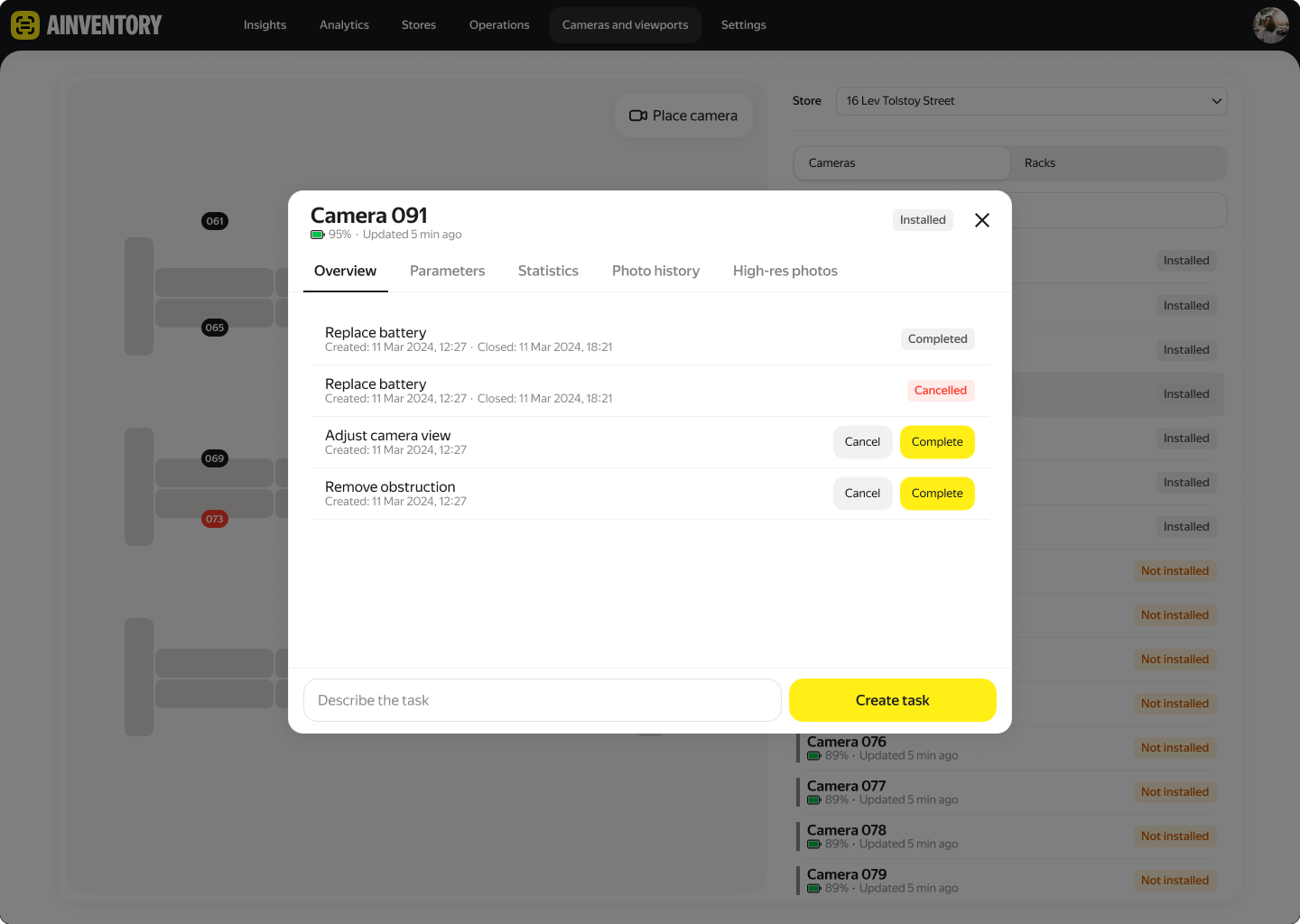
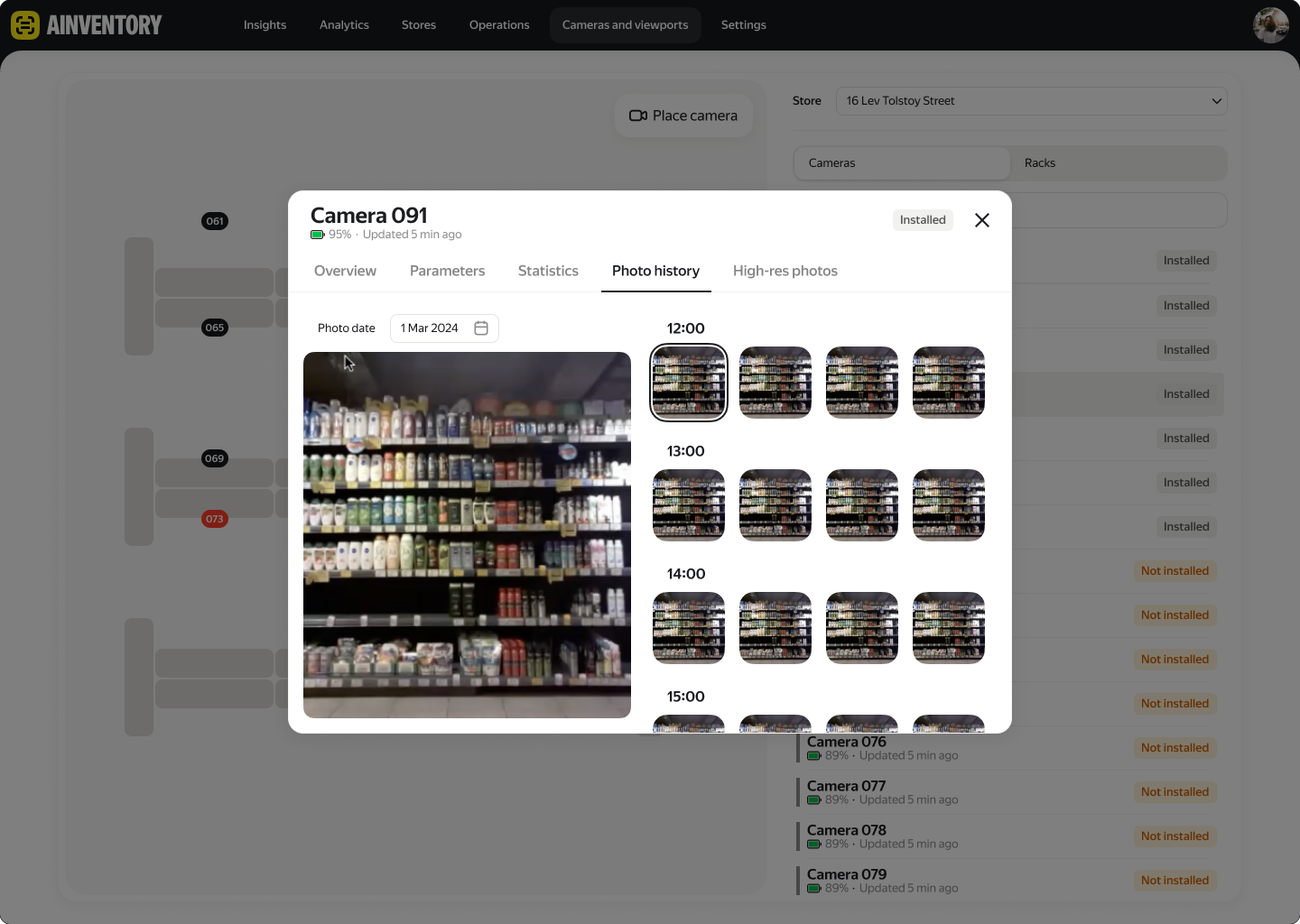
Partner-led setup was a product constraint. The camera workspace connects each device to the floor plan and shows its battery and update status. Maintenance tasks and photo history stay in the same context. Partners can find a device, place it on the plan and inspect its condition.
Support work at the camera
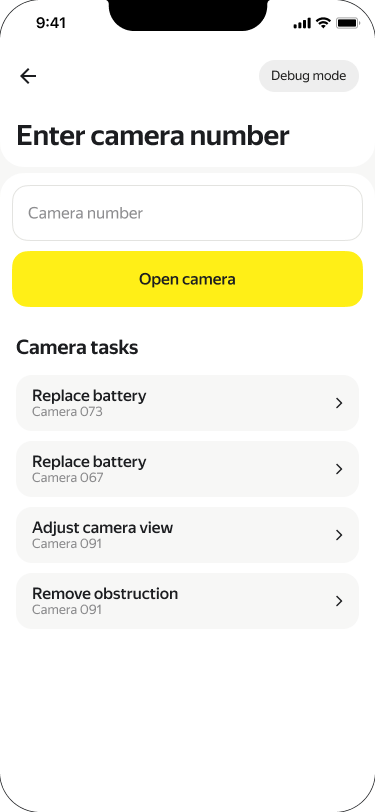
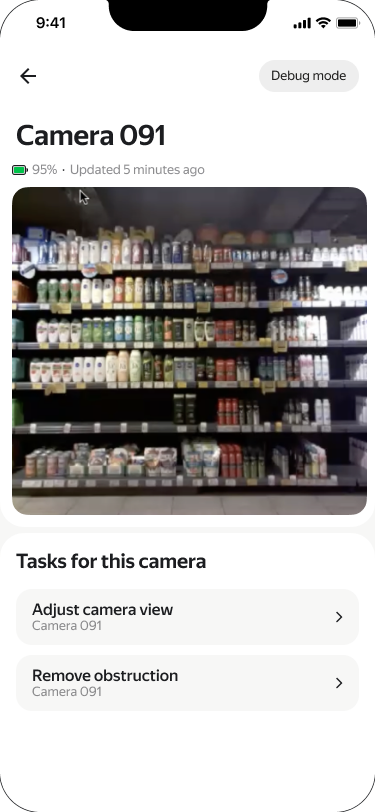
On mobile, employees can look up a camera by number and open its latest image, update time and related tasks. Desktop tools support oversight and setup; the mobile view supports work at the device on the shop floor.
Outcome
The designs supported demonstrations to prospective customers. The team subsequently signed its first customer in Kazakhstan. An exhibition demo was implemented while the broader product, including employee and camera workflows, remained in development at that stage.